
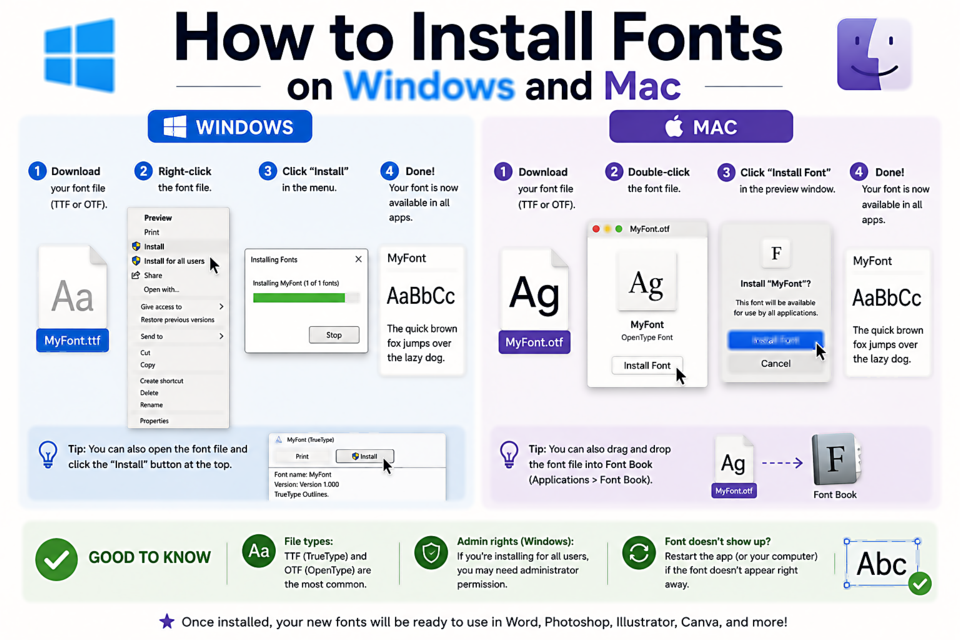
How to Install Fonts on Windows and Mac
What You Get When You Download a Font
Most fonts download as a ZIP file containing one or more font files. Common formats include .ttf (TrueType Font), .otf (OpenType Font), and .woff2 (Web Open Font Format, for websites). For desktop applications, you want TTF or OTF files.
If you downloaded a ZIP, extract it first. Right-click the ZIP file → Extract All (Windows) or double-click it (Mac).
Installing Fonts on Windows 10 and 11
Method 1 — Right-click install (easiest):
- Find the TTF or OTF file in the extracted folder
- Right-click the font file
- Click Install (installs for your user only) or Install for all users (requires admin rights)
- Done — the font is now available in all applications
Method 2 — Drag to Fonts folder:
- Open the Start menu and search for "Fonts"
- Open the Fonts settings or Control Panel Fonts folder
- Drag your font files directly into the window
Installing Fonts on macOS
Method 1 — Double-click install (easiest):
- Find the TTF or OTF file
- Double-click it — Font Book opens with a preview
- Click Install Font
- The font is now available system-wide
Method 2 — Font Book drag-and-drop:
- Open Font Book (search for it with Spotlight, Cmd+Space)
- Drag the font files directly into Font Book
The Font Still Isn't Showing Up?
If your font isn't appearing in an application after installing, try these fixes:
- Restart the application — most apps only scan for fonts at launch
- Check for duplicates — if you have two versions of the same font, conflicts can occur. Open Font Book (Mac) or Settings → Fonts (Windows) and look for duplicates
- Verify the file — try opening the font file itself to confirm it's not corrupted
- Check the font family name — the font may have installed but under a different name than you expect. Search for part of the name
Installing Multiple Fonts at Once
If you downloaded a font family with many weights (Regular, Bold, Italic, etc.), select all the TTF/OTF files at once — Ctrl+A on Windows, Cmd+A on Mac — then right-click and install them all in one step.